# Change Network Connection from Public to Private
If you’ve ever connected your Windows PC to a network and found that it’s marked as **Public** when you really wanted it to be **Private**, you’re not alone.
Windows labels networks as **Public** by default for security reasons. A **Public network** assumes you’re on an open Wi-Fi (like a coffee shop or airport) and locks down sharing and visibility. A **Private network**, on the other hand, is for trusted places like your home or office—it allows features like file sharing, network discovery, and printer access.
Changing this setting through the Windows interface can take a few clicks. But if you’re comfortable with PowerShell, there’s a super-quick way to do it.
You can use the below command to check what Network Category you currently have.
```powershell
Get-NetConnectionProfile
```
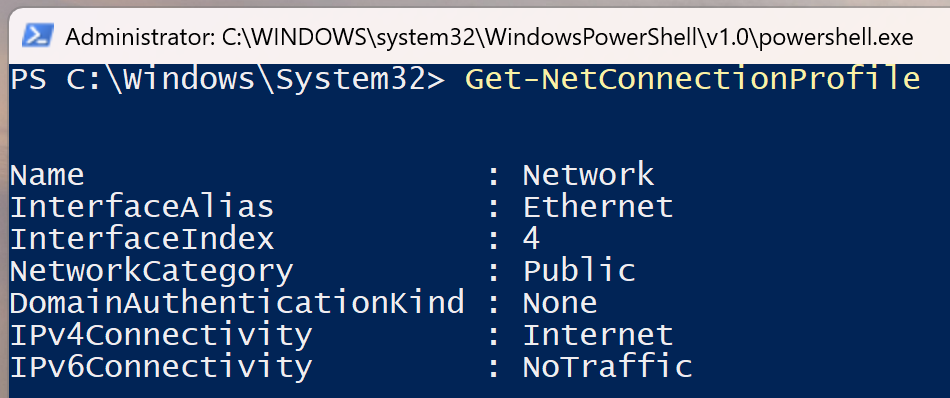To change **Public** to **Private**, Open **PowerShell** as an administrator and run:
```powershell
Get-NetConnectionProfile | Set-NetConnectionProfile -NetworkCategory Private
```
[](https://lukecarter.co.uk/uploads/images/gallery/2025-08/HRXSoL7kwaTtj8mM-image.png)
Running the below command again will confirm if this has worked
```powershell
Get-NetConnectionProfile
```
[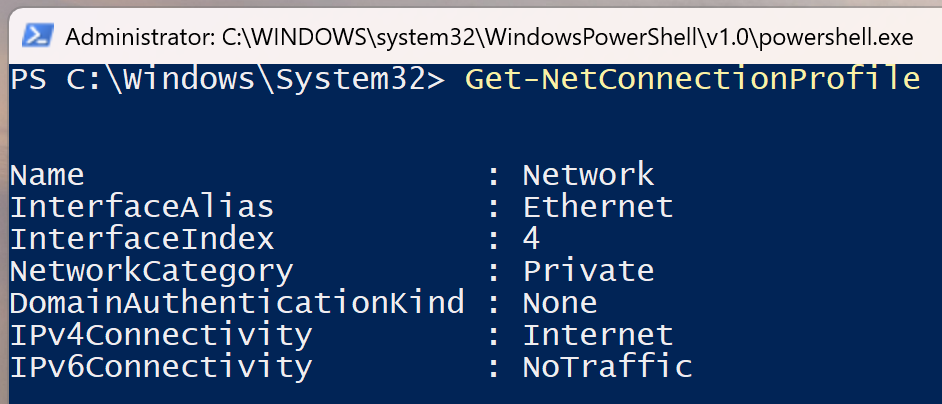](https://lukecarter.co.uk/uploads/images/gallery/2025-08/2bXbrsNGhBMDFF7T-image.png)
And that’s it! Instead of hunting through settings, you can flip your network from **Public** to **Private** in a couple of seconds.