# Add Google reCAPTCHA to RD Web Login Page

<span style="white-space: pre-wrap;">1. Go to </span>[https://google.com/recaptcha](https://google.com/recaptcha)<span style="white-space: pre-wrap;"> and click </span>**Get started**

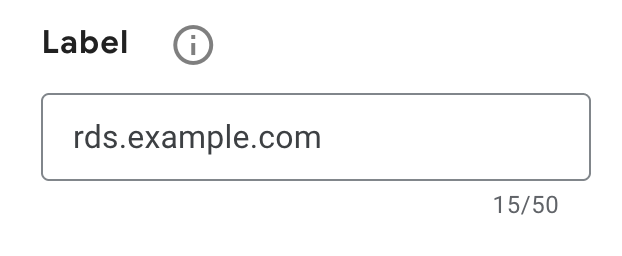
![image.png](https://lukecarter.co.uk/uploads/images/gallery/2025-12/scaled-1680-/AzGmr6u4qykWLBDq-image.png)<span style="white-space: pre-wrap;">2. Register your RD Web as a new site by setting a Label "rds.example.com" </span>

[![image.png](https://lukecarter.co.uk/uploads/images/gallery/2025-12/scaled-1680-/sOd5KKBfLtV9uBXM-image.png)](https://lukecarter.co.uk/uploads/images/gallery/2025-12/sOd5KKBfLtV9uBXM-image.png)

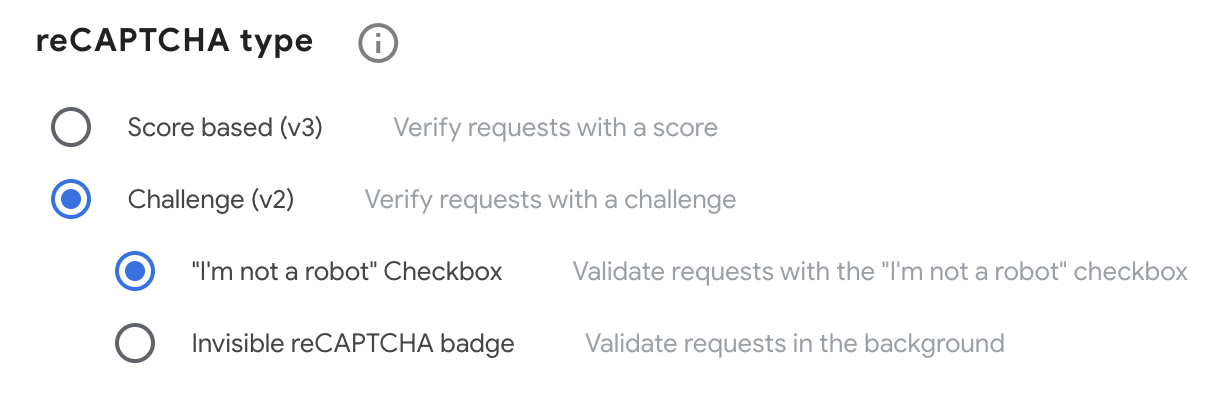
3\. Change reCAPTCHA to Challenge (v2)

[![image.png](https://lukecarter.co.uk/uploads/images/gallery/2025-12/scaled-1680-/1MJXOS4YYguEaQ32-image.png)](https://lukecarter.co.uk/uploads/images/gallery/2025-12/1MJXOS4YYguEaQ32-image.png)
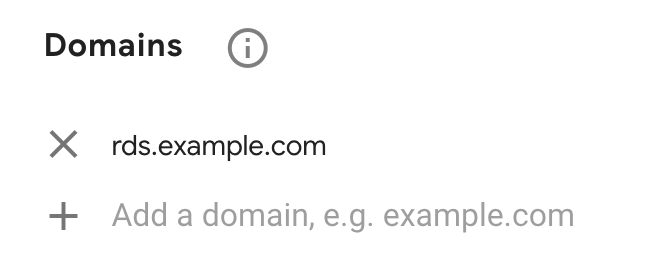
4\. Add your RDS URL in

[![image.png](https://lukecarter.co.uk/uploads/images/gallery/2025-12/scaled-1680-/ANBMnbxqEZ0hZXt3-image.png)](https://lukecarter.co.uk/uploads/images/gallery/2025-12/ANBMnbxqEZ0hZXt3-image.png)
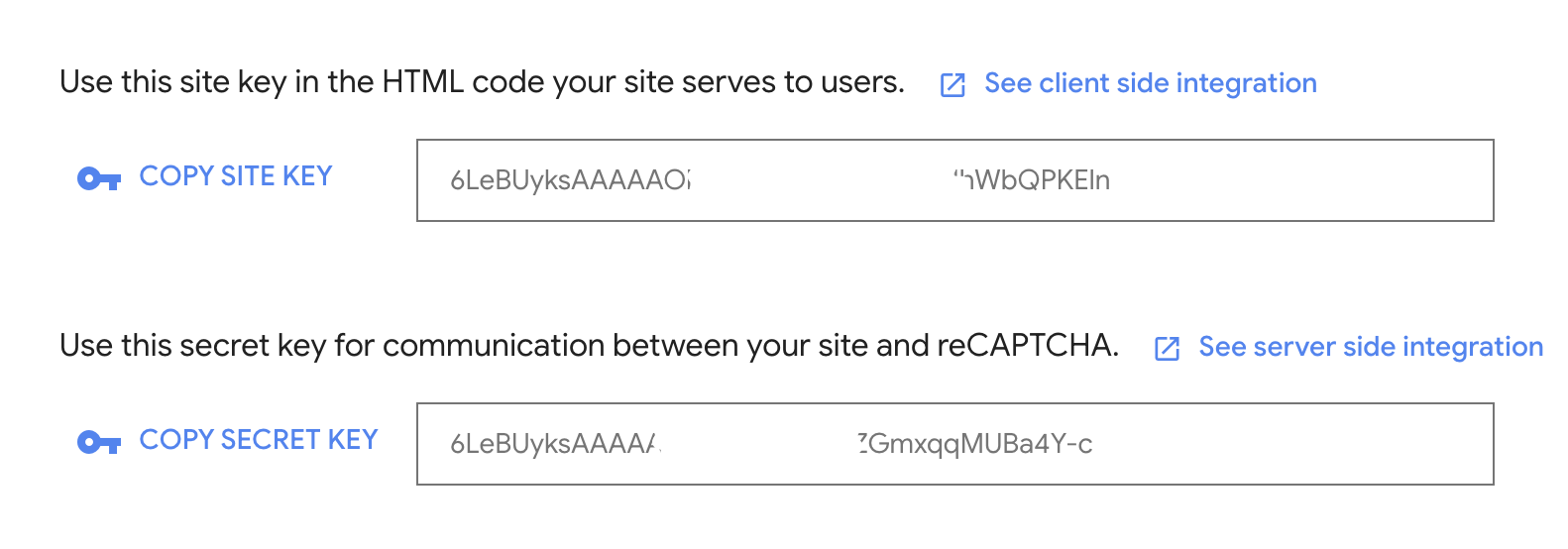
5\. You may be asked to name your "Google Cloud Platform" Project if you don't have one already. Just call this reCAPTCHA and press submit. You should now have a Site Key and Secret Key. We only need the Site Key.

[![Screenshot 2025-12-12 at 10.08.18.png](https://lukecarter.co.uk/uploads/images/gallery/2025-12/scaled-1680-/6sUVow5AOrllrxNI-screenshot-2025-12-12-at-10-08-18.png)](https://lukecarter.co.uk/uploads/images/gallery/2025-12/6sUVow5AOrllrxNI-screenshot-2025-12-12-at-10-08-18.png)
6\. On your RDS server open the login.aspx file in Notepad/Notepad++

```
C:\Windows\Web\RDWeb\Pages\en-US\login.aspx
```

7\. Search for &lt;HTMLMainContent&gt; and add the following lines after it

```
<script src="https://www.google.com/recaptcha/api.js"></script>


  <script type="text/javascript">


   function callValidation(){

     if(grecaptcha.getResponse().length == 0){

                alert('Please click the reCAPTCHA checkbox');

                return false;

            }

            return onLoginFormSubmit();

            return true;

        }


</script>
```

8\. Find and replace the following line from

```
<form id="FrmLogin" name="FrmLogin" action="login.aspx<%=SecurityElement.Escape(strReturnUrl)%>" method="post" onsubmit="return onLoginFormSubmit()">
```

To

```
<form id="FrmLogin" name="FrmLogin" action="login.aspx<%=SecurityElement.Escape(strReturnUrl)%>" method="post" onsubmit="return callValication()">
```

9\. Search for the the below line

```
<td align="right"><label><input type="submit" class="formButton" id="btnSignIn" value="<%=L_SignInLabel_Text%>" /></label>
```

and add the following below it with your SiteKey you got from the Google reCAPTCHA page

```
<div class="g-recaptcha" data-sitekey="ENTER YOUR GOOGLE reCAPTCHA Site Key here"></div>
```

10\. You should now have something that looks like this

[![image.png](https://lukecarter.co.uk/uploads/images/gallery/2025-12/scaled-1680-/UBkaxSfcF2qEFeTl-image.png)](https://lukecarter.co.uk/uploads/images/gallery/2025-12/UBkaxSfcF2qEFeTl-image.png)