
Add Google reCAPTCHA to RD Web Login Page
1. Go to https://google.com/recaptcha and click Get started
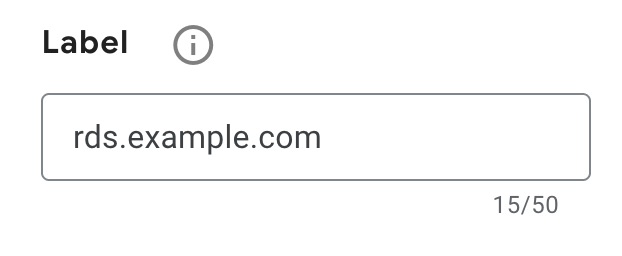
2. Register your RD Web as a new site by setting a Label "rds.example.com"
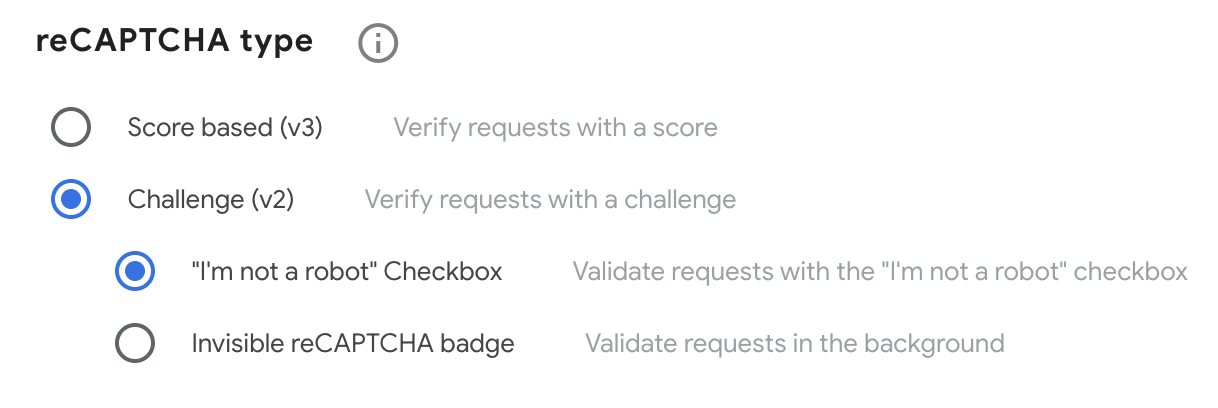
3. Change reCAPTCHA to Challenge (v2)
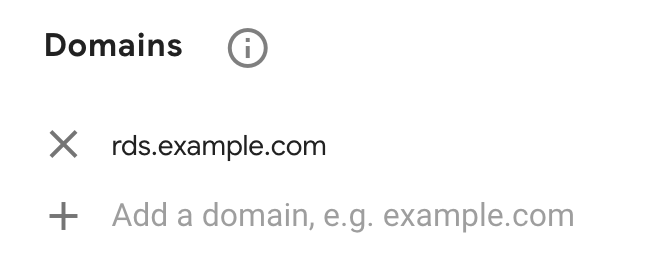
4. Add your RDS URL in
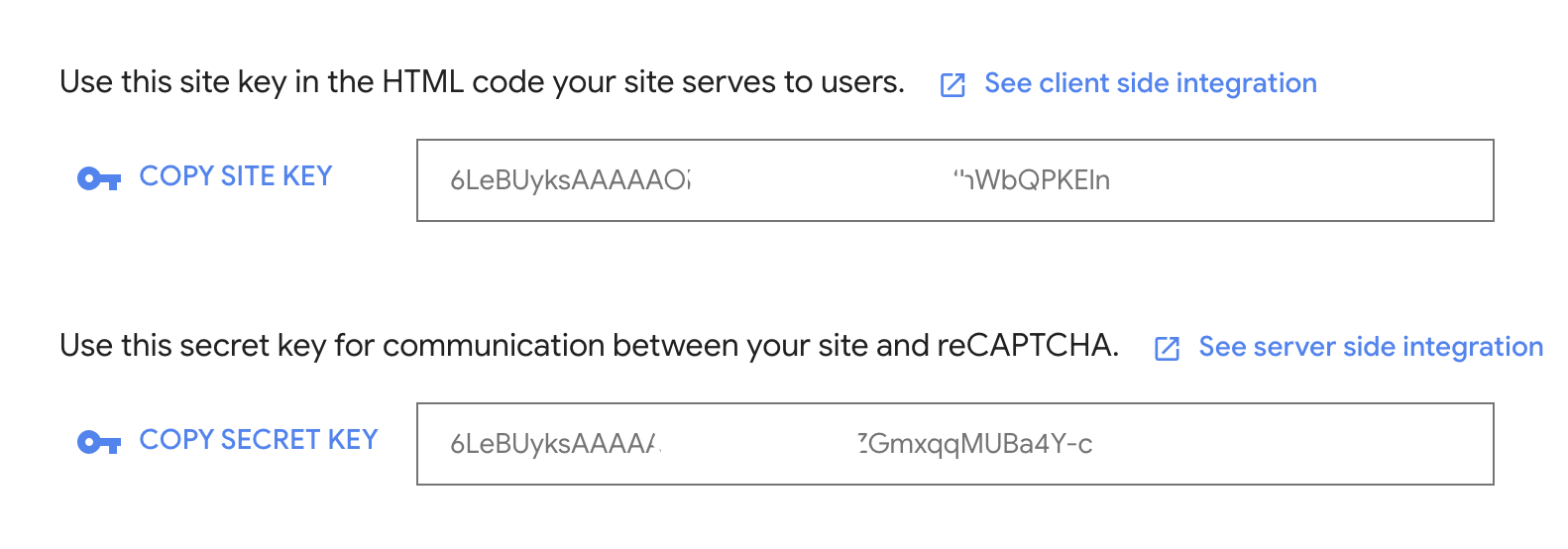
5. You may be asked to name your "Google Cloud Platform" Project if you don't have one already. Just call this reCAPTCHA and press submit. You should now have a Site Key and Secret Key. We only need the Site Key.
6. On your RDS server open the login.aspx file in Notepad/Notepad++
C:\Windows\Web\RDWeb\Pages\en-US\login.aspx7. Search for <HTMLMainContent> and add the following lines after it
<script src="https://www.google.com/recaptcha/api.js"></script>


  <script type="text/javascript">


   function callValidation(){

     if(grecaptcha.getResponse().length == 0){

                alert('Please click the reCAPTCHA checkbox');

                return false;

            }

            return onLoginFormSubmit();

            return true;

        }


</script>
8. Find and replace the following line from
<form id="FrmLogin" name="FrmLogin" action="login.aspx<%=SecurityElement.Escape(strReturnUrl)%>" method="post" onsubmit="return onLoginFormSubmit()">To
<form id="FrmLogin" name="FrmLogin" action="login.aspx<%=SecurityElement.Escape(strReturnUrl)%>" method="post" onsubmit="return callValication()">9. Search for the the below line
<td align="right"><label><input type="submit" class="formButton" id="btnSignIn" value="<%=L_SignInLabel_Text%>" /></label>and add the following below it with your SiteKey you got from the Google reCAPTCHA page
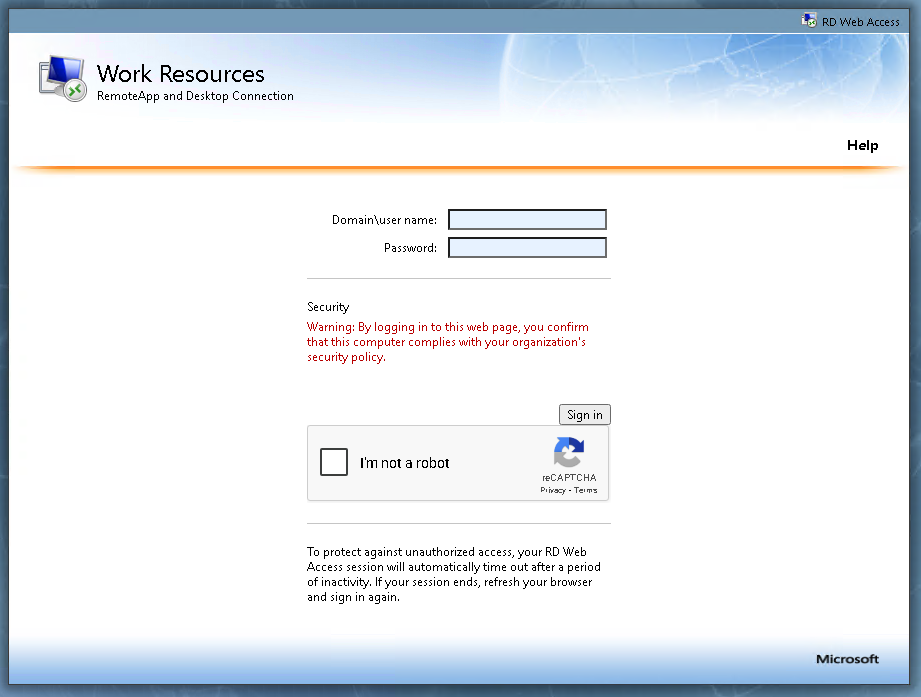
<div class="g-recaptcha" data-sitekey="ENTER YOUR GOOGLE reCAPTCHA Site Key here"></div>10. You should now have something that looks like this
No comments to display
No comments to display